Gemini Notebook 'make me a site': Guide, Sharing & Limits
How Google Gemini Notebook's 'make me a site' turns sources into interactive sites, plus full-notebook sharing rules and 5-hour quota limits.
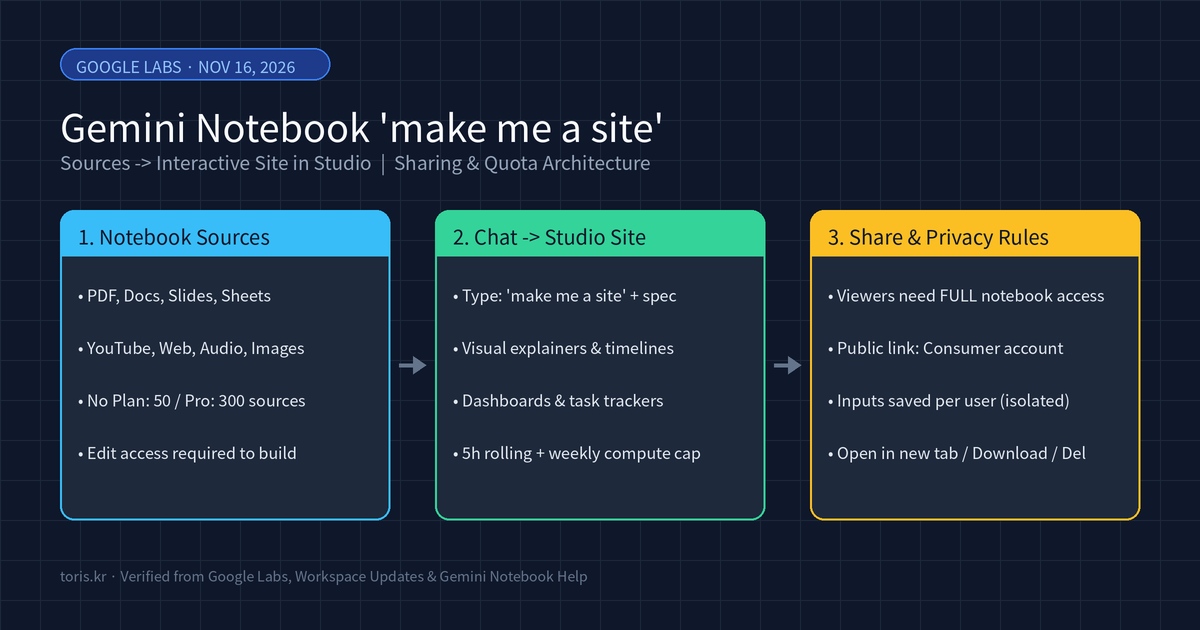
Q. Can I turn my own sources in Gemini Notebook (formerly NotebookLM) directly into an interactive website or dashboard? Yes. With the Interactive Sites feature announced by Google Labs on November 16, 2026, you simply type
"make me a site"along with a description in your notebook chat, and Gemini Notebook builds a working web page in the Studio panel from your uploaded sources.
⚠️ Accuracy guardrail: This article was verified on November 20, 2026 directly against the Google Labs blog post, Google Workspace Updates (November 18), and the official Gemini Notebook Help documentation. Google Workspace domains are on a gradual rollout of up to 15 days starting November 16, and Google has not disclosed a mobile launch date or the exact underlying Gemini model name.
30-second summary
- Availability: Global web rollout began November 16, 2026 for users aged 18+ (including personal Google accounts and Google Workspace subscribers); mobile app support is coming soon.
- How to run it: With edit access to a notebook, ask in the Chat panel to
"make me a site"with your target layout and fields, and the finished site appears in the Studio panel. - Interactive state: Checkboxes, notes, and text inputs are saved per user, meaning every viewer—including the owner—sees only their own entries on a shared site.
- Biggest sharing catch: Viewers must have access to the full notebook to open a shared site link, and public sharing/access management requires a consumer Google account.
1. Three types of outputs you can build with 'make me a site'
Gemini Notebook (renamed from NotebookLM on July 16, 2026) already generated reports, flashcards, infographics, slide decks, and Audio/Video Overviews in its Studio panel. This update adds an interactive web page output that readers can filter, click through, and save inputs on.

Google Labs highlights three primary use cases:
| Site type | Official example | Practical workflow |
|---|---|---|
| Visual explainers | Interactive periodic table, historical timeline | Turn lecture notes or PDFs into clickable study guides and self-check quizzes |
| Interactive dashboards | Quarterly sales performance dashboard | Convert spreadsheets and revenue reports into charts with region or quarter filters |
| Project management trackers | Task and deadline tracker | Turn meeting notes into a status board with owners, deadlines, and checkboxes |
Unlike standalone AI prototyping tools such as Gemini Canvas, Gemini Notebook anchors the generated site directly to your uploaded notebook sources (PDFs, Docs, Slides, Sheets, YouTube videos, web pages, and more). However, both Google's guidance and hands-on testing caution that an LLM can misread spreadsheet columns or dates, so figures in a generated dashboard should always be verified against the source files. Paired with Google Gemini Tasks Free in Korea, you can connect recurring research runs with visual organization inside the Google ecosystem.
2. Five steps from prompt to download
Only users with edit access to a notebook can generate or delete a site; viewers cannot create or remove them.
- Open
notebook.google.com, select a notebook you can edit, or create a new one and upload your sources. - In the right-hand Chat panel, ask it to
"make me a site"and describe what you want—for example:"Make me a site that tracks each task in these project notes, with owners and deadlines." - Generation takes some time, and you can continue working inside the notebook while it builds.
- Once finished, select the site in the Studio panel, or choose
More > Open in new tabfor full-screen interaction. - If needed, select
More > Downloadto save the generated site as a file you can pass on.
The more specific your prompt is about which sources to pull from, which fields to display (owners, deadlines, regions), and which controls to include (checkboxes, dropdown filters), the fewer revisions you will need.
3. Sharing rules and privacy boundaries you must check first
Sharing a generated site does not work like publishing an isolated static web page. Google's official Help article (Generate sites in Gemini Notebook) spells out strict access rules.
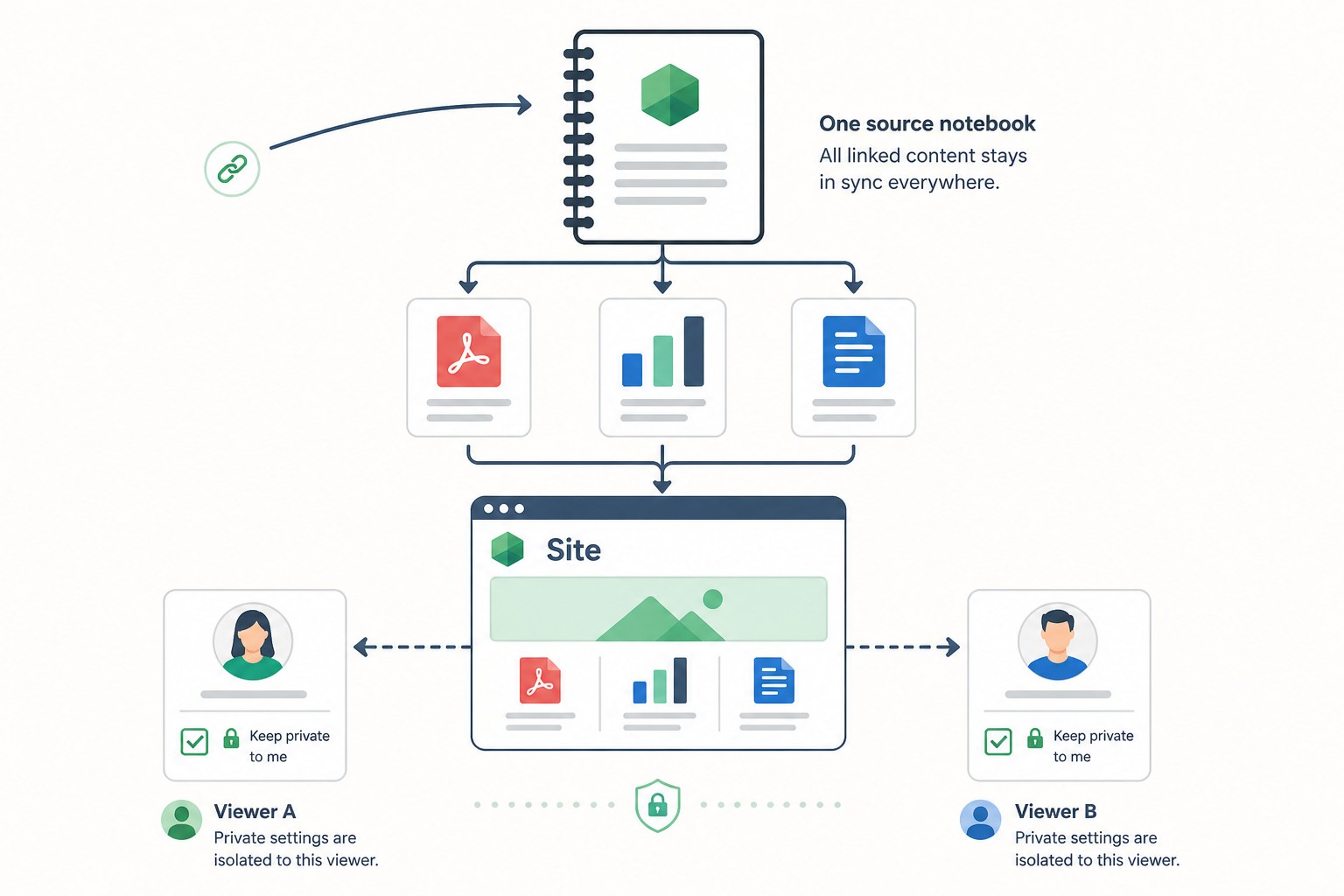
- Full notebook access is required: Even if you click
More > Sharein the Studio panel and selectCopy link to artifact, viewers must have access to the full notebook (either shared directly with them or set to Anyone with a link). You cannot share the site alone while keeping the underlying PDFs or meeting notes hidden. - Public sharing requires a consumer account: According to Google's Help page, public sharing and access management require a consumer Google account with owner or editor permissions. Google Workspace users may face organizational sharing restrictions.
- Per-user isolated inputs: Any checkboxes ticked or notes typed on a shared site are saved for that visitor on return, but all users—including the owner—see only their own inputs, never what others entered.
- Deleting breaks every link: Deleting a site or turning off sharing immediately invalidates all previously shared links.
4. Usage limits and source caps by plan
Google does not gate site generation behind a paid tier, but every build draws from a compute-based usage allowance factored by prompt complexity, features used, and chat length. Quotas refresh every 5 hours up to a weekly cap, and the Studio panel shows an estimated cost bar before you start.
| Plan | Usage allowance | Max notebooks | Sources per notebook (excl. notes) |
|---|---|---|---|
| No plan (Free) | Standard | 100 | 50 |
| Google AI Plus | 2x standard | 200 | 100 |
| Google AI Pro | 4x standard | 500 | 300 |
| Google AI Ultra | 5x or 20x AI Pro (by plan) | 500 | 500 (20 TB) / 600 (30 TB) |
If you hit the cap, the web app offers a Generate later option that queues the build and finishes in a couple of hours. You can check your remaining quota under Settings > Usage at the top right.
5. Four practical limitations to keep in mind
- Web only for now: As of November 20, 2026, interactive sites work only on the web; the mobile app lists support as "coming soon." For controlling coding agents remotely from a phone, a dedicated workflow like T3 Code Guide: Control Claude Code and Codex from Your Phone is a better fit.
- 18+ age requirement: Users under 18 cannot access the feature.
- No shared collaborative state: Because every viewer's inputs are isolated, you cannot use a shared site as a live team board where multiple people check off tasks for everyone to see.
- Source exposure risk: If a notebook contains confidential internal files alongside public material, sharing the site link can expose the entire notebook to viewers.
Toris's take
It is immediately useful for personal study guides, internal research reviews, and single-user dashboards—but do not use it to ship standalone client-facing pages.
The deciding constraint is the sharing model. Because opening a site link requires full access to the parent notebook, any externally shared site must be generated from a dedicated notebook containing only share-safe sources. On the other hand, if you want a visual timeline for exam prep, a quick interactive filter over quarterly numbers, or a rapid HTML prototype you can export via Download in minutes without writing boilerplate, it is one of the fastest source-to-UI workflows available.
Sources
- Turn Gemini Notebook sources into interactive sites — Google Labs Blog (2026.11.16)
- Transform your notes and research into dynamic tools with Gemini Notebook — Google Workspace Updates (2026.11.18)
- Generate sites in Gemini Notebook — Gemini Notebook Help
- Gemini Notebook Sites: Power-User Guide to Make a Site, Sharing and Limits — freeanswers.io (2026.11.17)
Advertisement